Skip to main content
How to set up a new printer
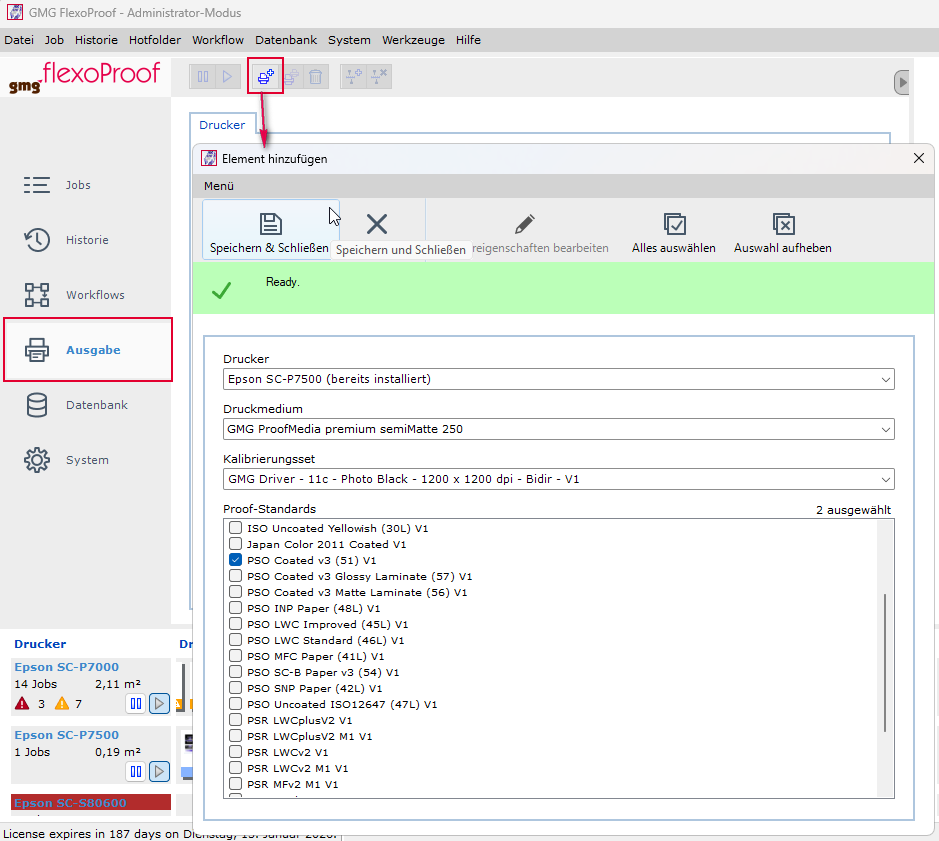
- Select the Output button in the main menu. It flashes during the initial setup.
- Click the New Printer button in the toolbar at the top. A new dialog box opens.
-
Select your Printer from the list.
- Select the desired Print Medium and calibration set from the drop down lists.
- Tick the checkboxes to activate the required proof standards.
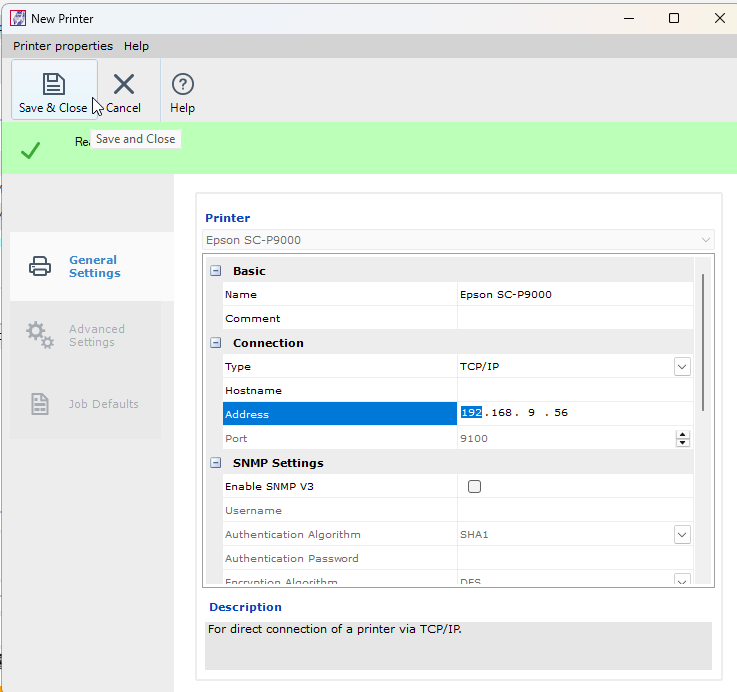
- Click Edit printer settings from the top menu. An additional dialog box opens.
- Complete the printer settings, especially the connection. We recommend a connection via TCP/IP.
- Click Save and Close. The printer settings dialog closes.
- Click Save & Close to add the new printer to the output overview.
See also:

Comments
0 comments
Please sign in to leave a comment.